

What is Mail Manus?
Mail Manus is where you can trigger Manus tasks by forwarding emails to a unique bot address. Instead of switching between your inbox and the Manus app, you can delegate work directly from your email client and receive results back via email. This approach integrates Manus into existing email workflows, making it particularly useful for processing incoming emails, handling email-based requests, and automating recurring email tasks without leaving your inbox.How to set up Mail Manus
1. Unique Bot Address: Each user receives a personal Manus email address (e.g.,
your-name-abc123@mail.manus.ai)
Navigate to Settings → Mail Manus and copy your unique bot email address.
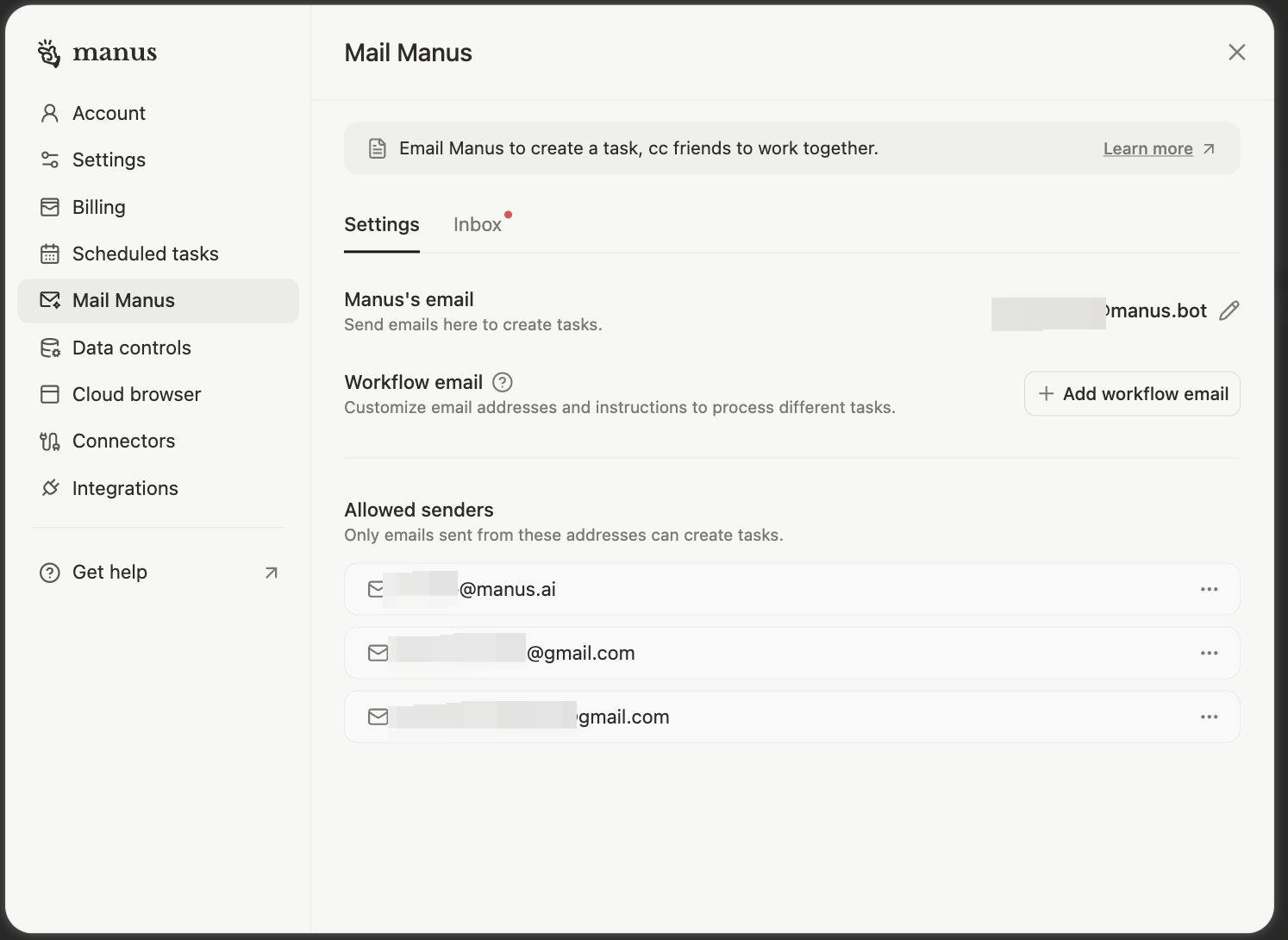
Advanced Features: How to setup email workflows
Workflow Automation
For recurring tasks like travel bookings, expense receipts, or invoice processing, you can set up workflow emails—dedicated Manus bot addresses that automatically handle specific types of emails.What are Workflow Emails?
Workflow emails are specialized Manus bot addresses designed for specific recurring tasks. Instead of using your main Mail Manus address, you create purpose-specific addresses like:travel@manus.bot- For flight, hotel, and conference bookingsexpenses@manus.bot- For receipts and expense trackinginvoices@manus.bot- For invoice processing and logging
How to Set Up Workflow Automation
Step 1: Create Your Workflow Email In Manus Settings → Mail Manus → Workflow Emails, create a new workflow email: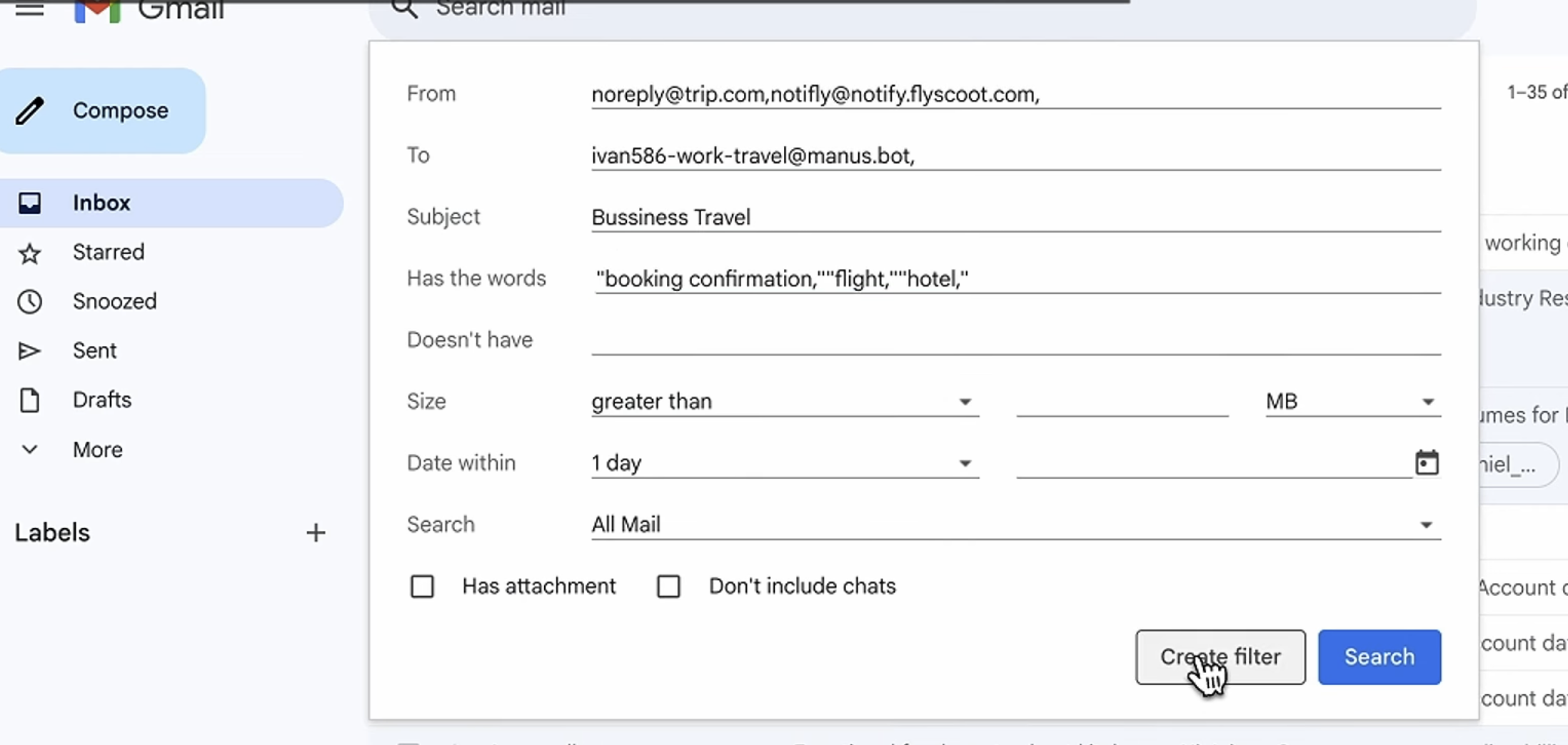
- Forwarded to your workflow email
- Processed by Manus using the default prompt
- Results sent back to your inbox
Real-World Workflow Examples
Travel Management WorkflowSecurity and Privacy
Approved Senders
Only emails from pre-approved addresses can trigger Manus tasks. Configure approved senders in Settings → Mail Manus → Approved Senders. Why: Prevents unauthorized use of your Manus bot address.Email Privacy
Manus processes email content to execute tasks. Emails are handled according to Manus’s privacy policy and data handling practices.Tips for Better Results
When to Use Mail Manus
Ideal For:- Processing incoming emails that require research or analysis
- Converting email threads into structured outputs
- Automating recurring email-based tasks
- Delegating work without leaving your inbox
- Collaborating with team members via email
- Tasks requiring real-time interaction (use Manus app instead)
- Highly sensitive information (use direct app interface)
- Tasks requiring immediate results (email has inherent latency)
Common Questions
Is my Mail Manus address private?
Is my Mail Manus address private?
Yes. Your bot email address is unique and only processes emails from approved senders.
What types of attachments can Manus process?
What types of attachments can Manus process?
PDFs, Word documents, Excel spreadsheets, images, CSVs, and other common formats.
How long does processing take?
How long does processing take?
Depends on task complexity. Simple summaries take 1-2 minutes; comprehensive research may take 10-15 minutes. Status updates are sent via email.
How long does processing take?
How long does processing take?
Depends on task complexity. Simple summaries take 1-2 minutes; comprehensive research may take 10-15 minutes. Status updates are sent via email.
Can I cancel a task after forwarding?
Can I cancel a task after forwarding?
Yes. Reply to the status email with “Cancel” or stop the task from the Manus app.
Does Mail Manus use credits?
Does Mail Manus use credits?
Yes. Tasks triggered via email consume credits like any other Manus task.
What happens if I forward something by mistake?
What happens if I forward something by mistake?
Manus sends a confirmation email before starting complex tasks, allowing you to cancel if needed.
Related pages
Automations
Run a task on a schedule or when something happens in a connected app.
Slack
Bring Manus into your team conversations in Slack.
Projects
Keep shared instructions and files so that every new task starts with the right context.